CAD & Vault Best Practices

Many teams using Autodesk Vault start new projects on a regular basis.
Each project typically begins with a similar structure: a predefined set of folders, sometimes a few template documents, and a consistent location inside the Vault.
In practice, however, starting a new project is often surprisingly informal. Someone creates a new folder, another user copies an existing project as a starting point, and over time the structure slowly drifts. Small inconsistencies accumulate and CAD managers often find themselves correcting project structures after the fact.
Vault 2024
Starting with Vault 2024, Autodesk introduced the Copy Folder capability, which makes it easy to duplicate an existing folder structure. This is a very useful feature when you want to reuse a hierarchy of folders.
Autodesk explains how the feature works:
However, copying a folder is not quite the same as starting a project. A project start often involves additional considerations: where the project may be created, which structure should be applied automatically, or which information should already be prepared when the project begins.
With a small amount of customization and automation, Vault can support a more controlled approach. Instead of asking users to manually copy structures, the creation of a project itself can become the trigger that applies the right structure automatically.
Let Vault react to project creation
One simple way to approach this is to treat the creation of a folder of category Project as the starting point.
From the user’s perspective, creating a new project remains a natural action: they simply create a new folder and assign the category Project.
Behind the scenes, Vault reacts to this event. As soon as the folder is created, a small script applies a predefined project structure automatically. The user immediately receives a ready-to-use project environment without needing to copy anything manually.
The template structure itself can be stored in a dedicated template folder inside Vault. When a new project folder is created, the structure from that template is applied automatically to the new location.
This keeps the interaction simple for users while ensuring that every project begins with a consistent and predictable structure.
Looking for a cleaner project structure?

Updating and reapplying the project structure
Project structures are rarely static. Over time, teams refine their templates and introduce additional folders.
When this happens, existing projects may need to be updated as well.
Instead of rebuilding structures manually, the same mechanism can also allow the structure to be reapplied to an existing project folder. A simple context menu command can trigger the logic again, adding any missing folders while leaving existing project data untouched.
This makes it possible to evolve project structures over time without disrupting active work.
Adding guardrails for project creation
Once project creation becomes automated, it also becomes possible to introduce helpful guardrails.
For example, an organization may decide that projects should only be created in a specific area of Vault. If a user attempts to create a folder of category Project somewhere else, Vault can simply prevent that action and guide the user toward the correct location.
Small rules like these help keep the Vault structure organized and prevent projects from appearing in unexpected places.
Over time, these guardrails contribute significantly to maintaining a clean and predictable data environment.
Implementing the automation
The behavior described above can be implemented using Vault events and a small PowerShell script.
When a folder is created, Vault triggers an event. The script evaluates the situation and applies the project structure whenever the folder category is Project. The same script can also provide a context menu command to reapply the structure when needed.
Tools like powerJobs Client make this type of customization straightforward. The client provides a set of PowerShell commandlets that simplify interacting with Vault — for example retrieving folders, updating folder structures, or adding menu commands directly inside the Vault client.
With only a small amount of code, it becomes possible to turn a simple user action into a consistent and reliable process.
Watch our video to see the full Vault project template flow.
Understand how to use folder categories and scripts to standardize Vault project structures.
A foundation for further automation
Once the basic mechanism exists, it can easily evolve.
For example, starting a project could also:
-
create template files such as Excel or Word documents
-
queue additional tasks through the Vault Job Processor
-
notify other teams that a new project has started
-
trigger integrations with ERP or PLM systems
Some of these actions may happen immediately, while others can run asynchronously through the job processor in the background.
The important point is that starting a project becomes a controlled entry point for further automation.
Consistency first
Solutions like this are often described in terms of time savings. But the real value is usually something else.Consistency across projects improves data quality, reduces errors, and makes the Vault environment easier to maintain over time. Teams spend less effort correcting structures and more time working with reliable data.
Or, as we sometimes say:
"Time is relative. Quality is not."
Try it yourself
If this scenario sounds familiar, you might want to try this approach in your own Vault environment.
To make it easier to experiment, we will provide the example PowerShell script used in this article for those who are comfortable with scripting.
And if you are facing a similar situation or would like to explore how Vault automation could support your processes, feel free to reach out to us — we are always happy to discuss ideas and real-world use cases. 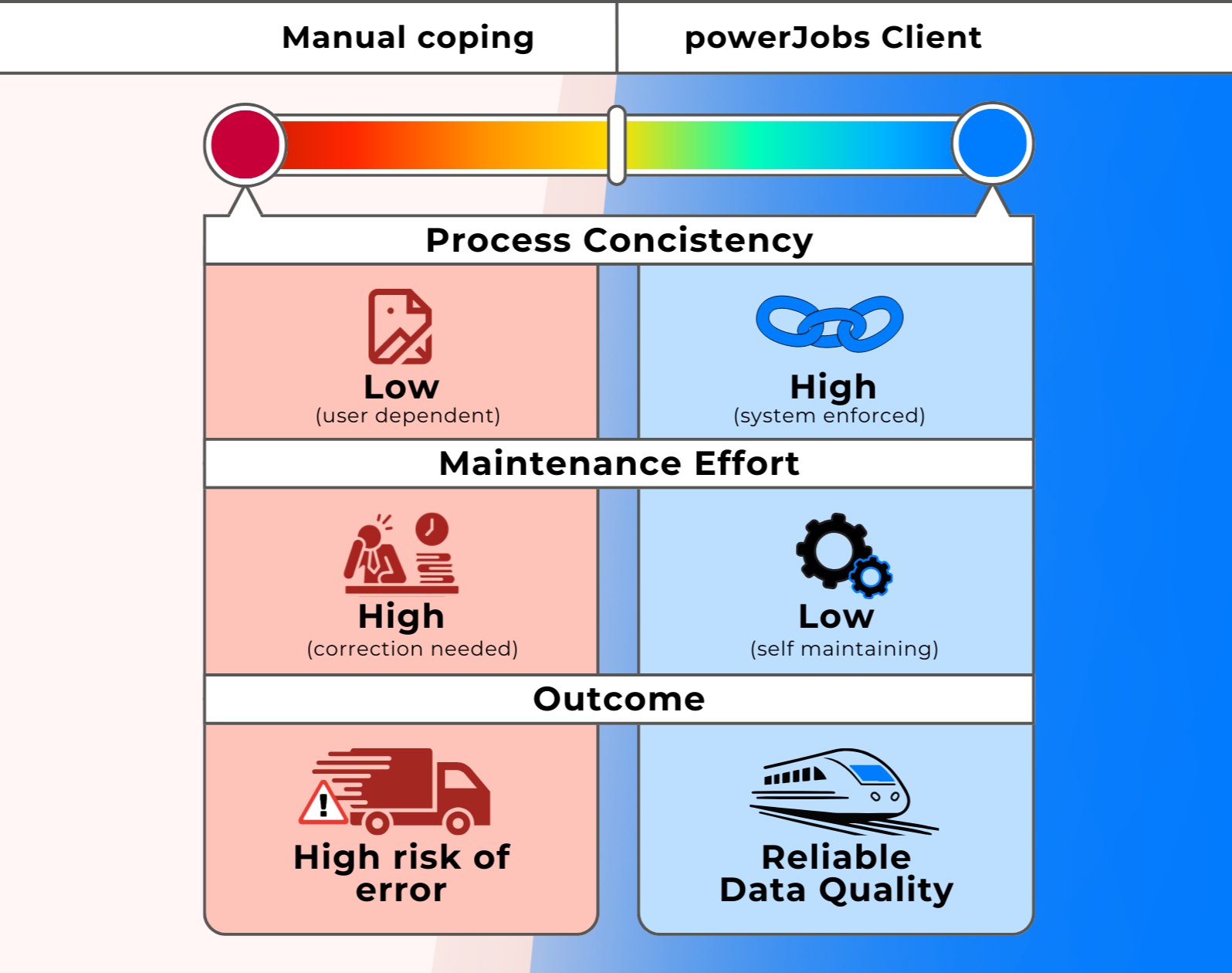
Ready to improve your project starts?